All Document Reader: PDF/Word
- 4.2
- Rating
- 1.00M
- Installs
- Free
- Price
 Analysis by App-foxy
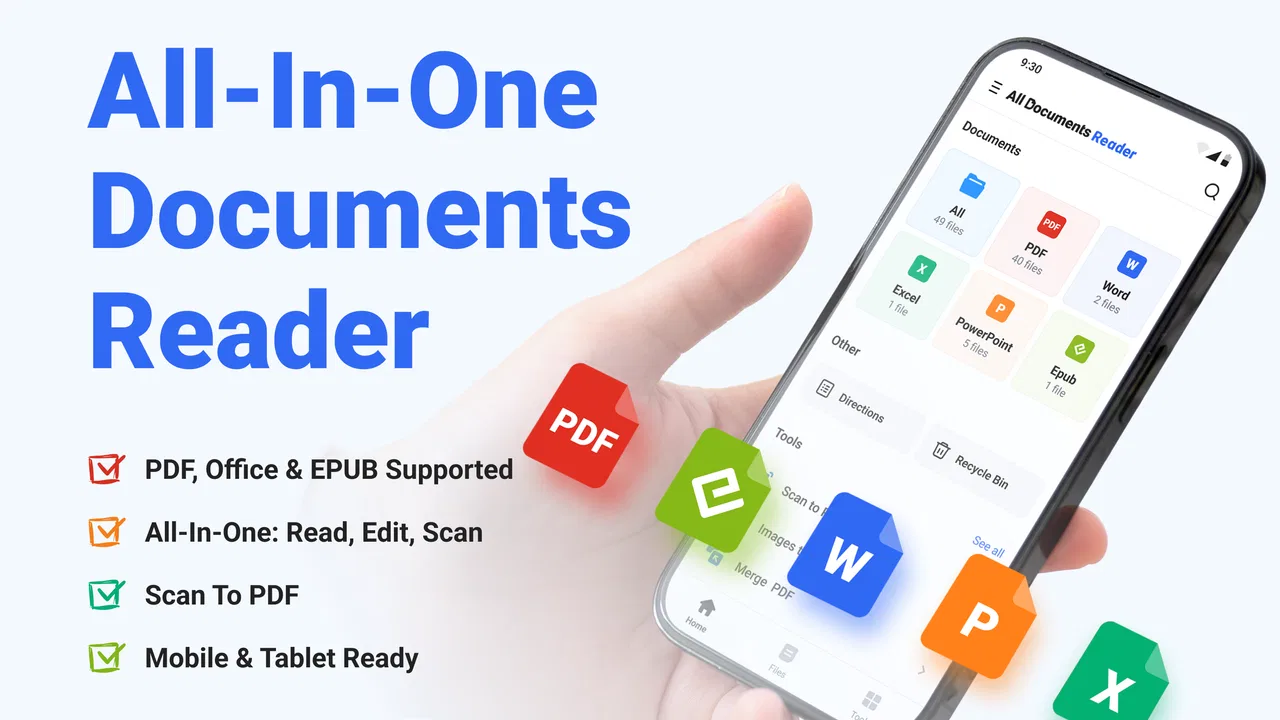
Reading a document on a phone often sounds simple until the file arrives in the wrong format, a signature is needed quickly, or a long PDF has to be understood before a meeting. All Document Reader: PDF/Word is built for that messy part of mobile life. Developed by Eternal Mobile Labs, this free tools app brings Word, Excel, EPUB, and PDF reading into one place, while also adding AI summaries, PDF scanning, editing, and electronic signing.
I found its appeal less in replacing every specialist office app and more in reducing the number of separate tools I need for everyday documents. It is aimed at people who regularly receive files through different channels and want one mobile workspace rather than a collection of viewers. The experience is especially interesting when connectivity becomes part of the task: some actions are likely to feel immediate, while others may depend on processing, loading, or sending information through a network.
How All Document Reader fits into everyday mobile document work
The first useful decision is knowing what kind of reader you need. If you only open an occasional PDF, a phone’s built-in viewer may be enough. If you work with several formats, though, switching between a PDF viewer, a document editor, a scanner, an EPUB reader, and an e-signing service quickly becomes inconvenient. This app puts those jobs under one roof, which is its clearest practical advantage.
You May Also Like

 Blood Strike: 2.5 Anniversary
Blood Strike’s Loadouts Turn Every Drop Into a Tactical Gamble
A close look at Blood Strike’s custom loadouts: how fast access to signature weapons reshapes its battle royale rhythm, rewards preparation, and narrows the gap between fights.

 Pandora - Music & Podcasts
Pandora’s Music Is Easy to Start, but Harder to Recover
Pandora’s strength is its low-effort path from a seed to a station. Its weak spot is how much confidence it asks you to place in connection, setup, and quiet recovery.

 8 Ball Pool
 Is Built on Rivalries, Rematches, and Routine
A close look at the rivalries, rematches, shared routines, and unanswered safety questions that turn a quick pool match into a persistent mobile community.

 Samsung Music
’s Quiet Strength Is Playing What You Already Own
Its reach comes less from spectacle than from dependable access to a personal library. That simplicity is both the app’s strongest retention engine and its ceiling.

 AccuWeather: Weather Radar
AccuWeather Review: A Quick, Clear Forecast for Everyday Decisions
For everyday plans, the best forecast is the one you can understand quickly. AccuWeather makes rain timing, radar, and local conditions easy to act on, with a few trade-offs.

 Hill Climb Racing
Why Hill Climb Racing Still Turns Crashes Into One More Run
A tiny car, a bumpy hill and one more upgrade: Hill Climb Racing keeps resurfacing because its simple chaos makes every near-miss feel personal.
More From Our News Desk



In my experience, the broad format coverage changes the way I handle incoming files. A Word attachment, an Excel document, an EPUB book, and a PDF no longer feel like separate errands. I can start by opening the file, decide whether I only need to read it, and then move toward a more active task such as editing, scanning, summarizing, or signing. That progression makes sense for a phone, where the biggest problem is often not the document itself but the friction between apps.
The app is free to install, with optional in-app purchases ranging from $3.99 to $94.99 per item. That makes it easy to test the basic workflow before deciding whether the extra tools justify spending money. I would not treat the purchase range as a reason to commit immediately. The right approach is to try the specific feature you need first, particularly if your main interest is AI summarization, editing, or signing rather than simple reading.
It has an average rating of 4.0 from around 14 thousand ratings, and it has passed one million installs. Those figures suggest a substantial audience, but they do not remove the need to judge the app against your own document habits. A broad audience can include casual readers, students, office workers, and people who only need a scanner once in a while. Their expectations are not identical.
Where connectivity changes the experience
Connectivity matters most when the app moves beyond basic viewing. Opening a document that is already available on the device is a different experience from asking an AI tool to summarize it, processing a scan, or sending a signed copy to someone else. I would plan those tasks with a stable connection rather than assuming every step will behave the same way in a weak-signal area.
A realistic example is preparing for a meeting while travelling. I might receive a PDF, skim its pages, and use the summary feature to identify the main points before arriving. If the summary takes place through a network-dependent process, the useful moment is not when I am already standing outside the meeting room with poor reception. I would open the document earlier, give the processing time it needs, and keep the original file accessible for checking details.
This is also where the app’s all-in-one design has a trade-off. Having reading, scanning, editing, and signing together is convenient, but the more advanced the task, the more important the connection and file-handling conditions become. A dedicated reader can feel simpler for plain text, while a dedicated office suite may be preferable for complex spreadsheets or formatting-sensitive work.
I would be particularly careful with AI-generated summaries. They are useful for orientation, not a substitute for checking the source when a number, deadline, legal clause, or technical instruction matters. The best workflow is to use the summary to find the relevant section, then return to the original document before acting on it. That small habit prevents convenience from turning into overconfidence.
Useful mobile scenarios beyond simply opening a file
The scanner and e-signing tools make the app more relevant when a document starts in the physical world. Imagine receiving a paper form at a school, clinic, rental office, or workplace. Instead of waiting to reach a computer, I can scan the pages, inspect the resulting PDF, make the necessary changes, and sign it from the same mobile environment. That is a more convincing use case than simply claiming that the app reads many formats.
There is a practical order to this workflow. I would scan first, check every page for legibility, rotate or adjust anything that looks wrong, and only then edit or sign. Signing a poor scan creates a problem that is harder to fix later. The important insight is that the scanner is not just a capture button; it is the first quality-control stage of the final document.
For students and researchers, EPUB support gives the app a different role. A phone can become a single place for course reading, reference PDFs, and office documents. I would still prefer a larger screen for long editing sessions, but the ability to move between reading formats is useful when reviewing material during short gaps in the day. The AI summary can help decide which chapter or report deserves closer attention, while the full text remains necessary for serious study.
For office workers, the strongest scenario is quick response rather than full production. You may need to read an attachment, add a small correction, sign a form, or send back a scanned page. Those are tasks where carrying a phone is more convenient than finding a laptop. On the other hand, I would not choose it as my only tool for elaborate spreadsheets, heavy formatting, or document layouts where tiny changes can affect the final appearance.
What happens when a document or connection goes wrong
Document apps are judged not only by their successful moments but also by how calmly they handle interruptions. A weak connection, a large file, an incomplete scan, or a failed handoff can turn a two-minute job into a frustrating one. My advice is to treat important work as a sequence of checkpoints: open the source, inspect the content, save or retain a usable copy, and verify the final result before closing the task.
This approach is especially important for signing. I would never assume that pressing the signing control means the job is finished. I would review the signed pages, confirm that the signature appears in the intended location, and make sure the resulting file is available before leaving the app. If the network becomes unreliable during the final step, having the source document ready for another attempt is much better than discovering later that the recipient received an incomplete file.
Scanning deserves the same caution. A phone camera can capture a page that looks readable on the screen but becomes unclear when zoomed or printed. I would inspect small text, page edges, and multi-page order before editing. If the scanner produces a result that is difficult to read, repeating the scan immediately is less painful than correcting a bad document after it has been sent.
When a summary does not look complete or seems too vague, I would use it as a prompt to inspect the original rather than repeatedly asking for a shorter version. Summaries are most valuable when they reduce the time needed to locate important sections. They are less useful when treated as an authoritative replacement for the document.
One limitation of a combined app is that a problem in one stage can affect the whole workflow. A specialist PDF editor may offer deeper controls, and a full office suite may provide more predictable handling of complex files. All Document Reader is better suited to quick, mixed-format tasks than to demanding professional production. That is not a flaw for its intended audience, but it is a boundary worth recognizing before relying on it for critical work.
Using it thoughtfully when mobile data matters
If I were using the app on a limited mobile plan, I would separate reading from processing. I would avoid starting AI summaries or sending large scanned documents until I had a dependable connection, particularly when the file contains many pages or detailed images. Plain reading is usually the least demanding part of the experience; scanning, editing, and sharing deserve more deliberate timing.
A simple routine helps. I would prepare documents while connected to Wi-Fi, review the scan before sending it, and avoid generating multiple summaries when one focused summary is enough. For a long report, I would first identify the section I actually need instead of processing the entire file automatically. This saves time and may reduce unnecessary network activity, while also producing a more useful result.
Privacy should influence the way I use connected features, even without making assumptions about the app’s policies. I would think twice before sending highly sensitive paperwork through any feature that processes or shares content, and I would check the document carefully before signing or forwarding it. For routine forms, study material, or ordinary work attachments, the convenience may be worthwhile. For confidential records, I would choose the workflow only after considering the sensitivity of the material and the consequences of an error.
Another data-conscious habit is to keep the original and the final version clearly separated. After scanning or editing, I would avoid replacing the source until I have checked the result. This is useful not only for recovery but also for preventing accidental reprocessing, repeated uploads, or confusion about which version was actually signed.
Who should use it and who should choose something else
I would recommend this app to people who want a flexible mobile document toolbox: commuters handling attachments, students reading mixed file types, freelancers returning signed forms, and families who occasionally need to scan paperwork. Its strongest quality is the way it connects several small document jobs into one practical flow.
I would be more cautious if your work depends on advanced spreadsheet formulas, precise desktop-style formatting, extensive annotation controls, or a carefully managed offline routine. In those cases, a dedicated office suite, specialist PDF editor, or platform-native file viewer may be a better primary tool. You can still find value here as a secondary utility, but I would not expect one mobile app to match every specialist alternative.
The minimum operating system is Android 8.1, so compatibility covers a wide range of devices while still leaving older phones outside the supported boundary. The app is rated for Everyone, which fits its general document purpose. Its current version is 4.13.1, and the developer is Eternal Mobile Labs. Those details matter when deciding whether it fits an older handset or a shared family device.
My main practical tip is to judge it by a complete workflow rather than by its feature count. Take one ordinary document, try opening it, test the relevant action, inspect the result, and consider how the process behaves when your connection is not ideal. If that sequence feels comfortable, the combination of tools is likely to save you time. If you only need a basic viewer, the extra functions may simply add choices you will never use.
My connectivity verdict
All Document Reader: PDF/Word is most convincing as a mobile problem-solver. It brings together reading, scanning, editing, summarizing, and signing, so I can move from receiving a document to preparing a response without constantly hunting for another app. The free entry point makes it reasonable to explore, while the optional purchases mean I would check the value of the advanced tools against my actual routine.
Connectivity does not define every moment, but it becomes important whenever the app processes content, completes an online-style action, or sends a finished file onward. I would prepare important documents early, verify every scan and signature, and treat AI summaries as navigation aids rather than final authority. Those habits make the experience more reliable and more data-conscious.
My final recommendation is positive for readers who regularly deal with mixed document formats on a phone and want convenience more than specialist depth. It is not the best choice for demanding desktop replacement work or for anyone who wants a strictly simple viewer. For everyday mobile paperwork, however, the real strength is the connected workflow from document arrival to checked, edited, or signed result. Used with sensible verification and awareness of network-dependent moments, it can be a genuinely useful tool to keep available.
FAQs for All Document Reader: PDF/Word
01What types of documents can All Document Reader: PDF/Word open?
All Document Reader: PDF/Word is designed to handle several common office and document formats in one place. Depending on the version installed and device support, it can open PDF files as well as Word documents such as DOC and DOCX. Some releases may also support spreadsheets, presentations, text files, or other formats. Checking the app’s current compatibility list is recommended before relying on it for a less common file type.
02Can I use All Document Reader: PDF/Word without an internet connection?
Yes, the app is generally useful for reading documents that are already saved on your phone, so an internet connection is not normally required to open local PDF or Word files. Internet access may still be needed when downloading documents from email, cloud storage, messaging services, or the web. Offline availability can also depend on whether the file has been fully downloaded and remains accessible on your device.
03Does All Document Reader: PDF/Word allow users to edit documents?
The main purpose of All Document Reader: PDF/Word is document viewing and management rather than full professional editing. You can usually read files, zoom in and out, search for text, and navigate between pages. Basic actions such as sharing, renaming, or organizing files may also be available. Advanced Word editing, PDF modification, annotations, or conversion tools may be limited or require a premium feature.
04Is All Document Reader: PDF/Word free to download and use?
The application may be available as a free download, but free access can include advertising, optional purchases, or restrictions on certain tools. Premium features may include an ad-free experience, advanced document functions, cloud-related options, or additional file-management capabilities. Before installing, review the store listing and subscription information carefully, especially if the app offers a free trial that automatically renews.
05Is All Document Reader: PDF/Word safe for opening private documents?
As with any document utility, you should consider privacy before opening confidential files. Review the permissions requested by All Document Reader: PDF/Word and install it only from the official Google Play Store or Apple App Store. Avoid granting unnecessary access, and check the developer’s privacy policy to understand how files and usage data are handled. For highly sensitive documents, local offline viewing is preferable when available.
Pros
- Opens PDF
- Word
- Excel
- and PowerPoint files in one place.
- Simple interface makes browsing documents quick for new users.
- Useful search tool helps locate files and text within supported documents.
- Supports offline access to locally stored files without requiring an account.
- File sharing options make sending documents to other apps convenient.
Cons
- Some advanced editing features may require an in-app purchase.
- Ad interruptions can make frequent document viewing less comfortable.
- Large files may take longer to load on older phones.
- Formatting may not appear perfectly in every Word or Office document.
- The app may request broad storage permissions to access your files.

All Document Reader: PDF/Word
Gallery